Welcome to ModernBuilder
Stop drafting, start building. ModernBuilder crushes project paperwork by transforming weeks of tiresome estimation, justification, and billing into mere minutes. This turns the tedious, time-consuming cycle of project administration into a seamless, intuitive process.
Built on the latest DSR-2023 framework, our platform ensures every proposal is precise, professional, and compliant. We handle the updates so you can focus on what you do best: delivering faster, more profitable projects, from the office to the job site.
This user manual is your comprehensive guide to mastering ModernBuilder. Whether you are a new user or an experienced professional, this guide will help you leverage every feature to streamline your construction projects.
Getting Started
If you're new here, we recommend starting with the Overview section to understand the basics of registration and the core features of the platform.
Registration
Creating an account with ModernBuilder is the first step toward transforming your workflow. The process is simple and secure.
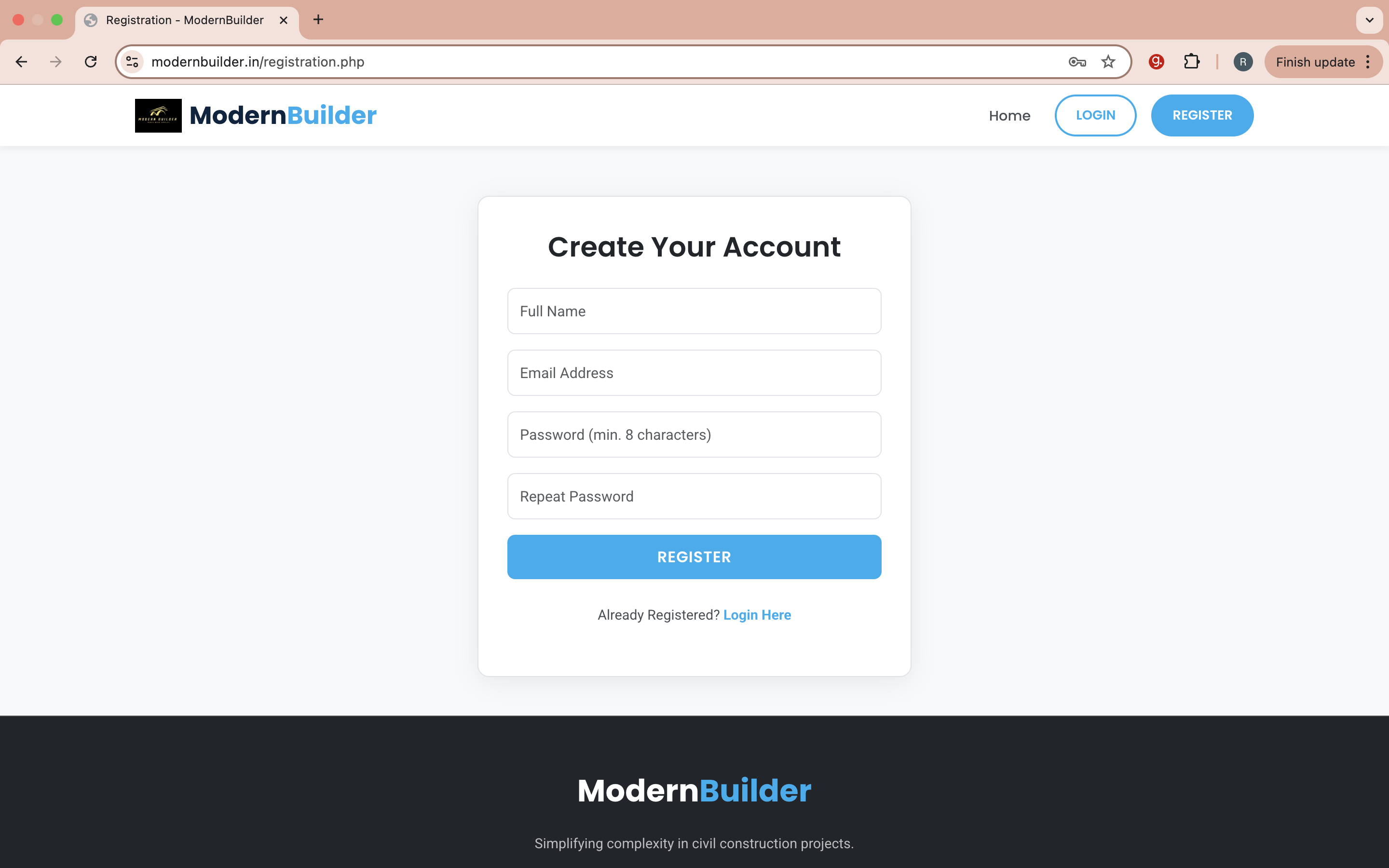
- Navigate to the Registration Page.
- Fill in your details, including your name, email address, and a secure password.
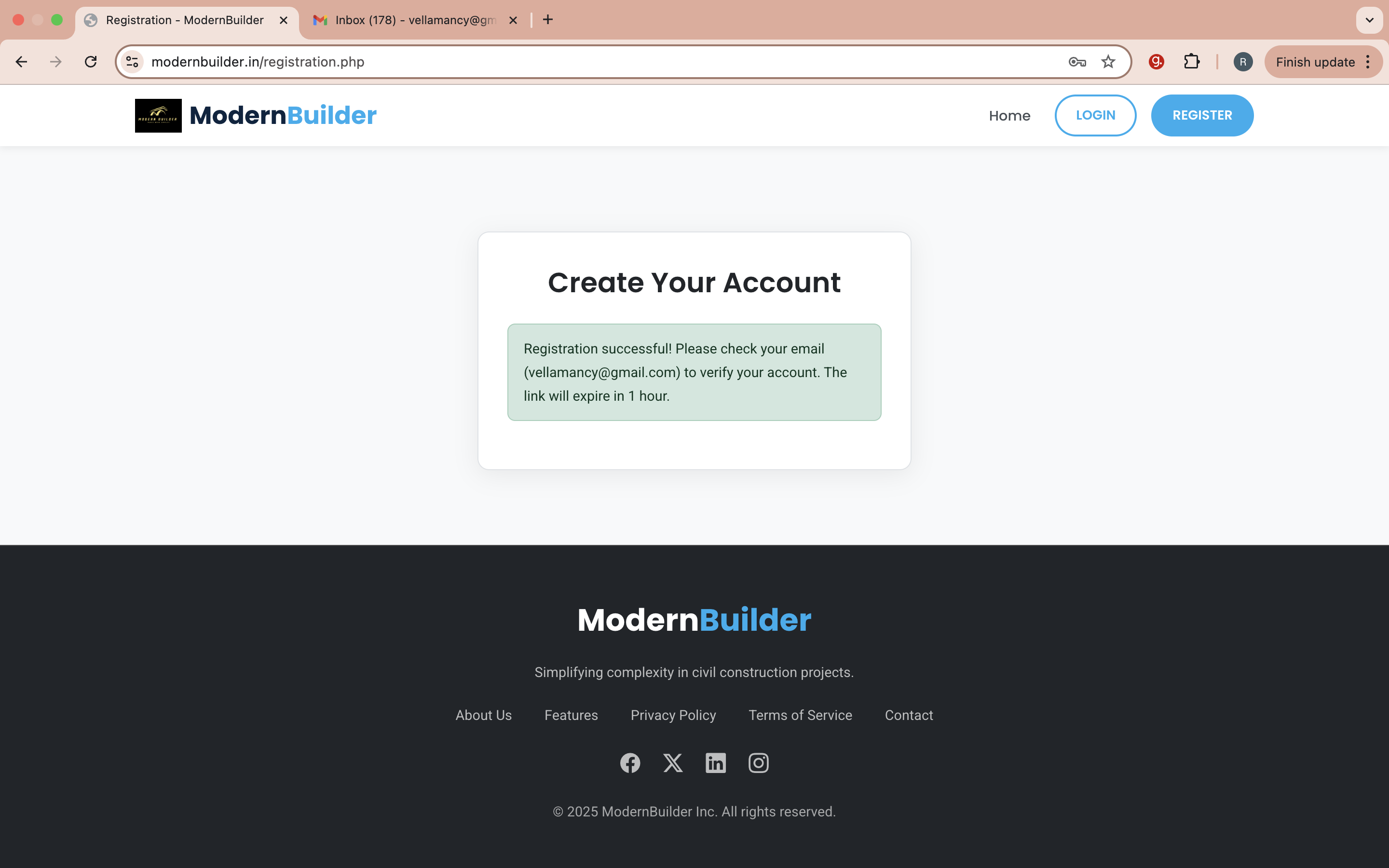
- After filling in your details, click the 'Register' button. A verification email will be sent to the address you provided.
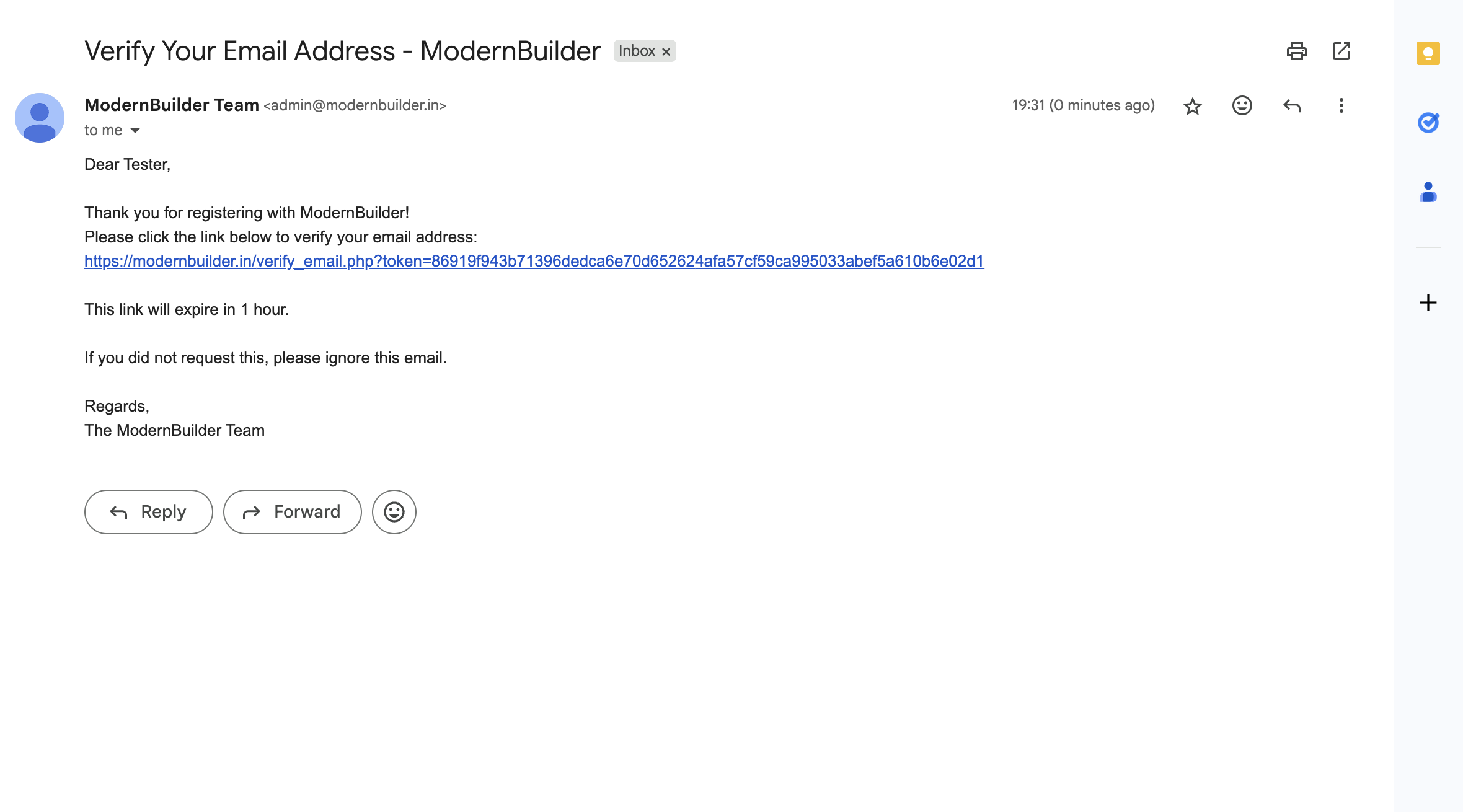
- Check your inbox and click the verification link in the email.
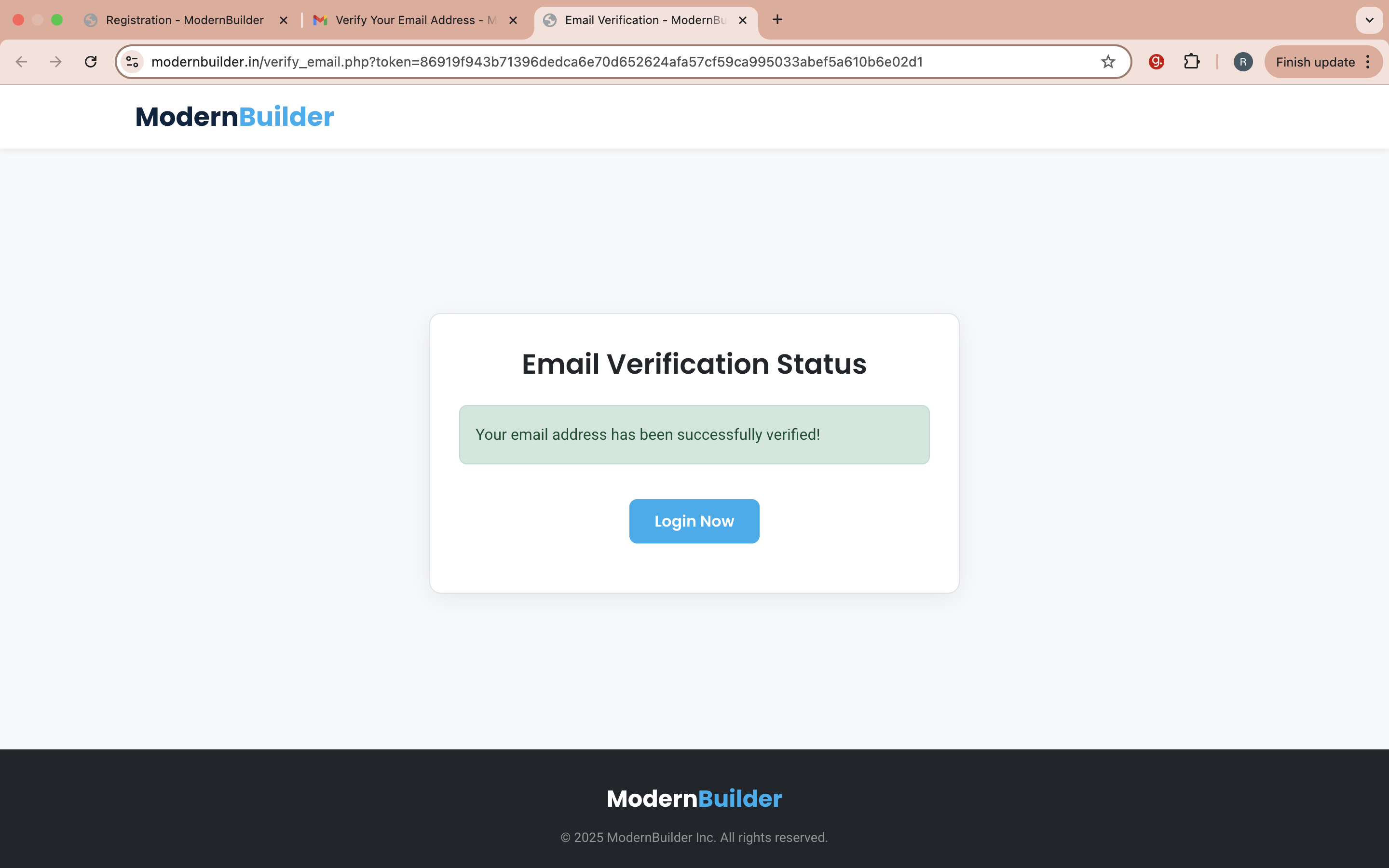
- Your email is now verified. You can proceed to the login page.
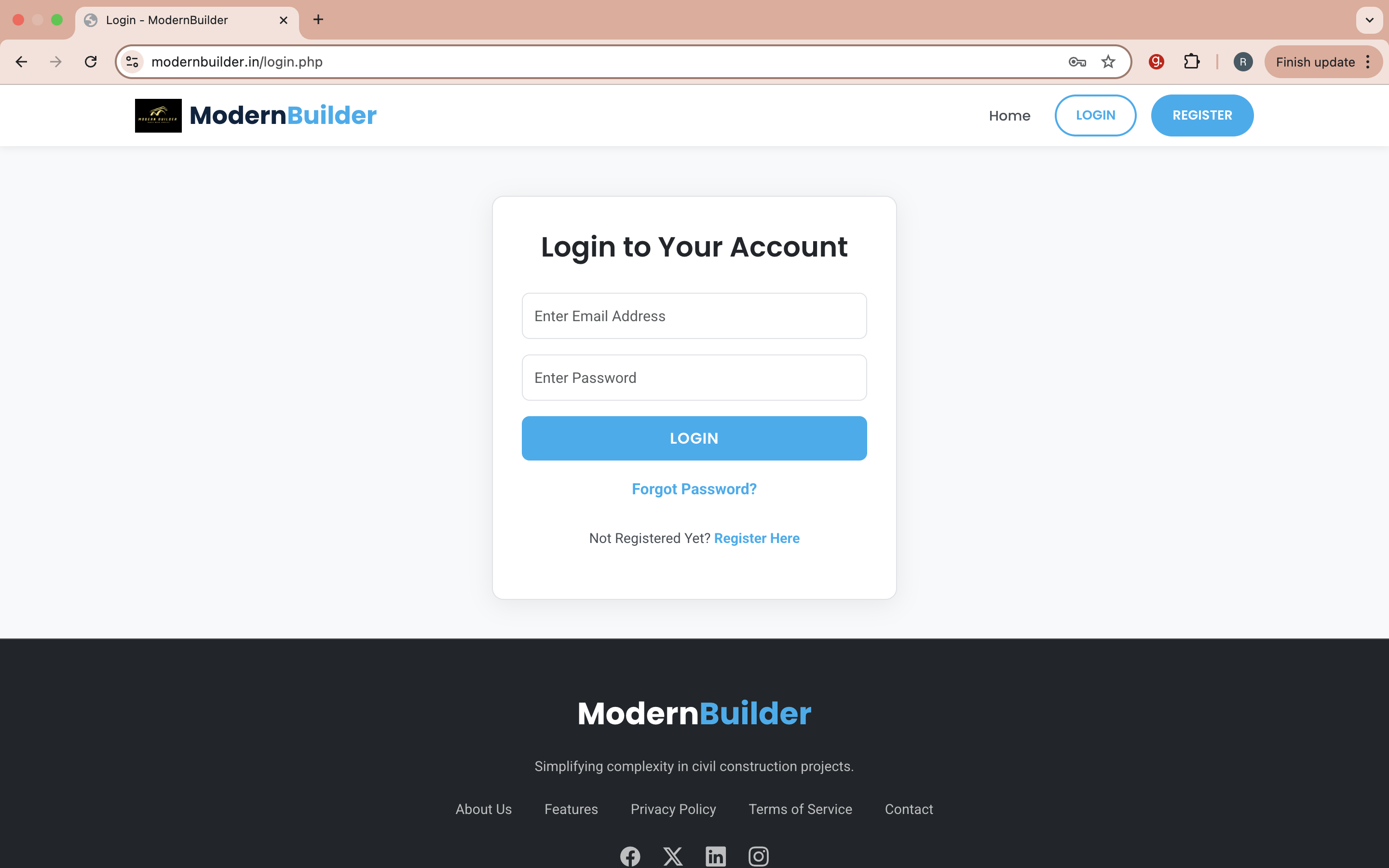
- Click 'Login Now' or use the 'Login' button in the top menu to access the login page shown below.
Our Features
Once you log in, you will land on the main dashboard. On the left, you will find the main sidebar menu with key modules: My Space, My MR Items, Universal MR Items, Preliminary Estimate, Detail Estimate, Justification, and RA Bill.
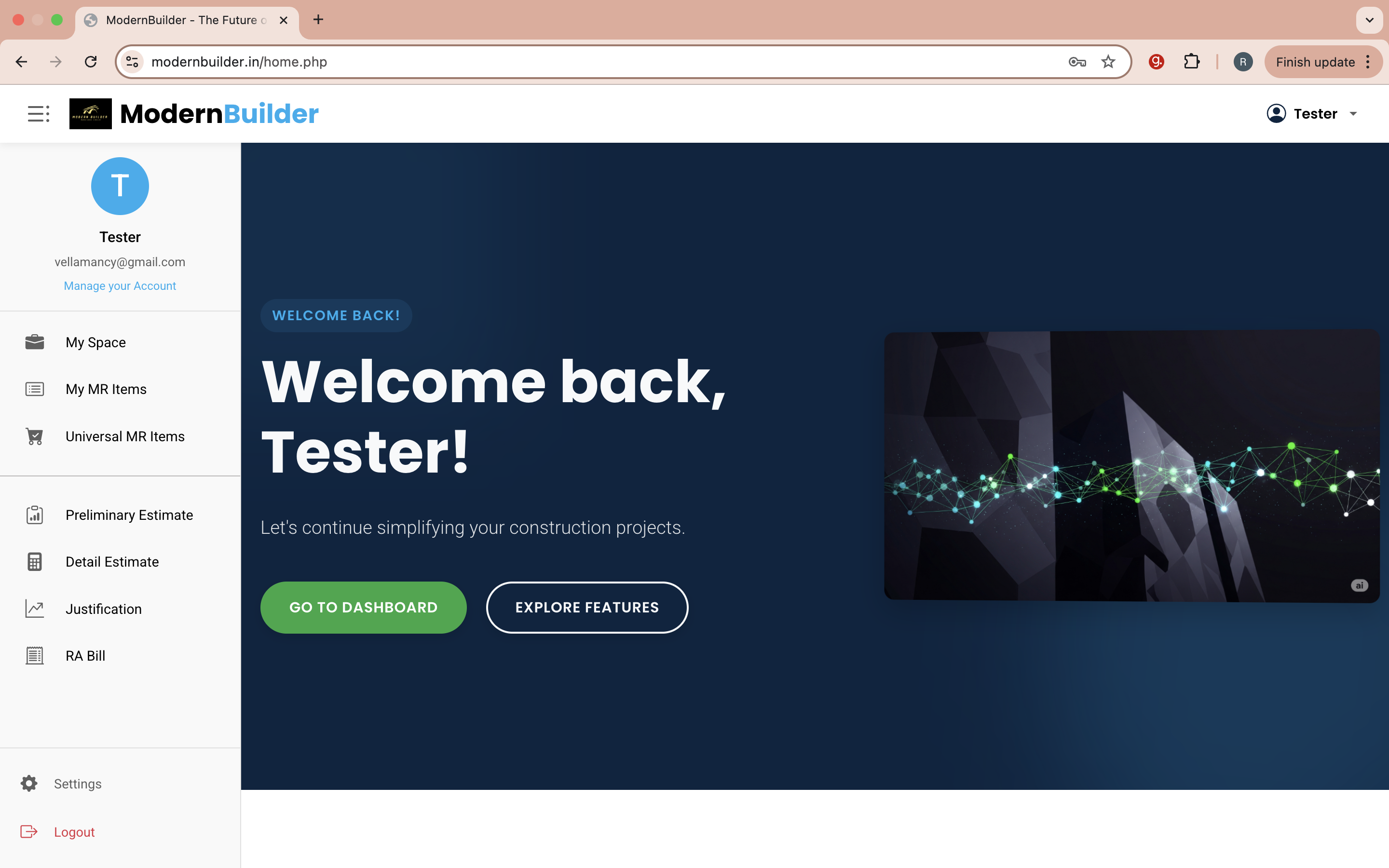
Click the menu icon at the top of the sidebar to collapse it, giving you more space for your work.
Below is a brief description of each module. For detailed instructions, please see the "Work Flows" section of this manual.
- My Space: This is your central hub, showcasing all your created work at a glance. It features three sliding panes for My Works, My Market Rate Items, and My Preliminary Estimates. From here, you can also download your work directly to Excel.
- My MR Items: This module provides a comprehensive space to create and save your own Market Rate (MR) items. Once created, an item and its analysis are saved for your lifetime use in any estimate, from anywhere. These items also contribute to a shared databank, helping other users without revealing your identity.
- Universal MR Items: In this collaborative space, you can browse Market Rate Items created by other users. If you find a useful item, you can add it—along with its analysis—to your personal list with a single click. This feature saves significant time by preventing duplicate work and gives you a head start, as you can edit the imported item to fit your exact needs.
- Preliminary Estimate: This is the dedicated workspace for creating high-level preliminary estimates for your projects.
- Detail Estimate: Use this module to build comprehensive, line-by-line detailed estimates with precision.
- Justification: Here, you can prepare detailed justifications for your estimates, which can be downloaded as a formatted Excel file.
- RA Bill: This module streamlines the creation of Running Account (RA) Bills for your ongoing projects.
Work Flow: My Space
Your "My Space" is the command center for all your saved work. It allows you to quickly find, review, and download any estimate or item you have created.

How to Use My Space:
- Navigate to My Space from the main sidebar menu.
- The view defaults to "My Works." Use the arrow buttons on the sides of the table to switch between the three panes: My Works, My Market Rate Items, and My Preliminary Estimates.
- To download a file, find the desired entry in the table and click the "Download to Excel" icon in its row.
Work Flow: My MR Items
Create a personal, reusable library of non-schedule items in the "My MR Items" module. This saves time and ensures consistency across all your projects.

How to Create a New MR Item:
- Navigate to My MR Items from the sidebar.
- Click the "Create New Item" button to open the form.
- Fill in the required fields: item description, unit (e.g., sqm, kg, nos), and the base rate.
- Optionally, provide a detailed rate analysis for the item in the space provided. This is highly recommended for accurate justifications later.
- Click "Save Item." It will now appear in your list and be available when you create a Detail Estimate.
Work Flow: Universal MR Items
Leverage the collective knowledge of the ModernBuilder community. This module lets you find and import MR items created by other professionals, saving you valuable time.

How to Import an Item:
- Navigate to Universal MR Items from the sidebar.
- Use the search bar at the top to find an item using keywords (e.g., "vitrified tile," "epoxy paint").
- Click on an item in the search results to review its description and rate analysis.
- If the item meets your needs, click the "Add to My Items" button. A copy will be added to your personal library in the "My MR Items" module.
- You can then edit this imported item as needed without affecting the original.
Work Flow: Preliminary Estimate
A Preliminary Estimate gives you a quick, high-level cost projection for your project. Here's how to create one in ModernBuilder.
Steps:
- Select Preliminary Estimate from the main sidebar.
- Enter the basic project parameters in the form, such as total area, type of construction, and location.
- Click "Calculate." The system will use standardized rates to generate and display an initial cost estimate instantly.

Work Flow: Detail Estimate
Create a granular, line-by-line estimate for maximum accuracy and professional proposals.
Steps:
- Select Detail Estimate from the main sidebar.
- Begin by adding items. You can search the built-in DSR-2023 schedule or import items from your "My MR Items" library.
- For each item, specify the quantity. The rate and amount are calculated automatically.
- Once complete, save the estimate. You can then proceed to create a justification or download it from "My Space."

Work Flow: Justification
Justify your estimate's rates with data-driven analysis comparing scheduled rates to current market rates.
Steps:
- Select Justification from the main sidebar.
- Choose the saved Detail Estimate you wish to justify from the dropdown list.
- The system will display the items from the estimate. For each item, input the current market rates for its constituent materials and labor.
- After filling in the rates, click "Generate Justification." ModernBuilder will produce a professional report, which can be downloaded from "My Space."

Work Flow: Billing (RA Bill)
Generate Running Account (RA) Bills effortlessly for your active projects.
Steps:
- Select RA Bill from the main sidebar.
- Choose the relevant project and specify that you are creating a new RA Bill.
- For each billable item, enter the quantity executed in the current billing cycle.
- The system automatically calculates the amount, handles "Since Previous" data, and generates all necessary abstracts for PFMS entry. The final bill can be downloaded from "My Space."
